
Back to Top
[Latest] Google AI Studio Billing Setup Guide
To use the Gemini API without limits and stably, billing setup (transition to paid tier) in Google AI Studio is required. Here is the shortest procedure based on the current UI.
Key Points
- Difference from free tier: By setting up billing, the request limit per minute (Rate Limit) is significantly relaxed, and entered data will not be used for model training (privacy protection).:
- Pay-as-you-go: Although it is a prepaid system, by combining it with auto-recharge, it can be operated with the same convenience as conventional "pay-as-you-go". We recommend enabling it to continue using the API without stopping.:
- Project linking: If you have multiple projects, check if the target project is correctly linked to the "Billing account" on the billing screen.:
Conclusion (Just remember this)
- Billing setup is done from "Billing" in Google AI Studio.
- Currently, credit purchase (prepaid) is the basis (use auto-recharge if necessary).
- When completed, "Paid Tier 1" etc. status and balance (credits) will be reflected at the top of the AI Studio screen.
* Screenshots are shown in Japanese.
Procedure (Latest UI)
- Google AI Studio and log in with your Google account.
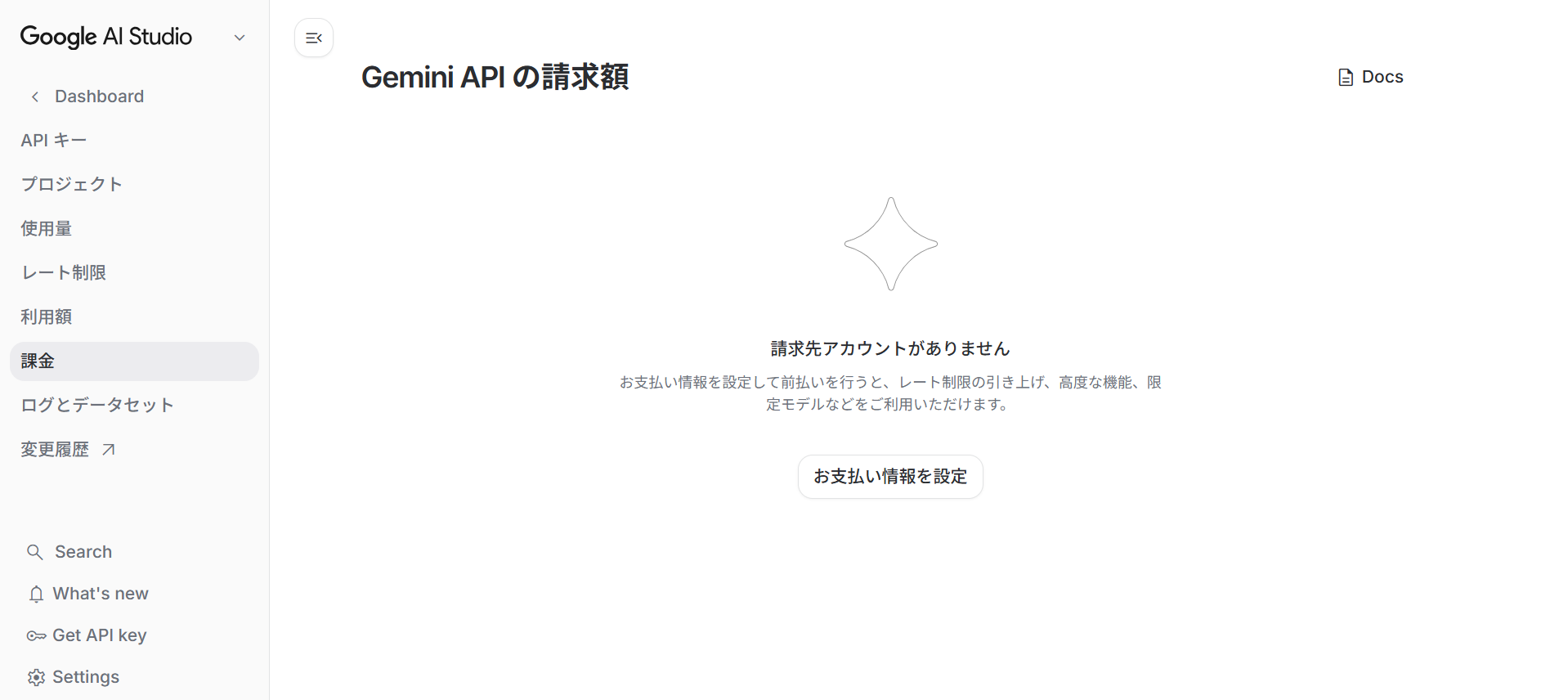
- Click "Billing" in the side menu on the left side of the screen.
 Click to enlarge
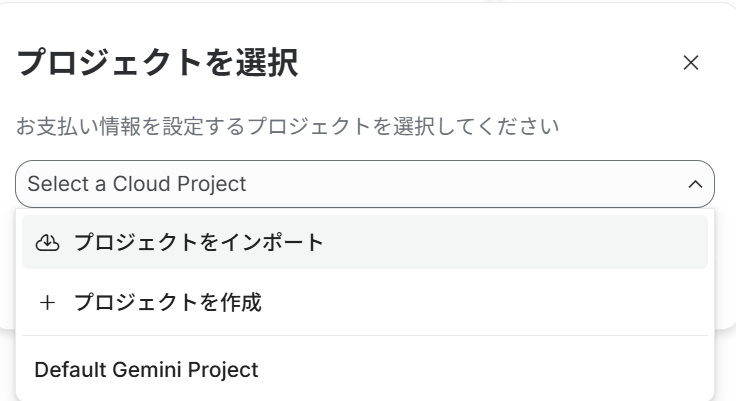
 - Click "Billing information" in the center of the screen and proceed with the settings as guided.Select/import existing project or create one.
 Click to enlarge
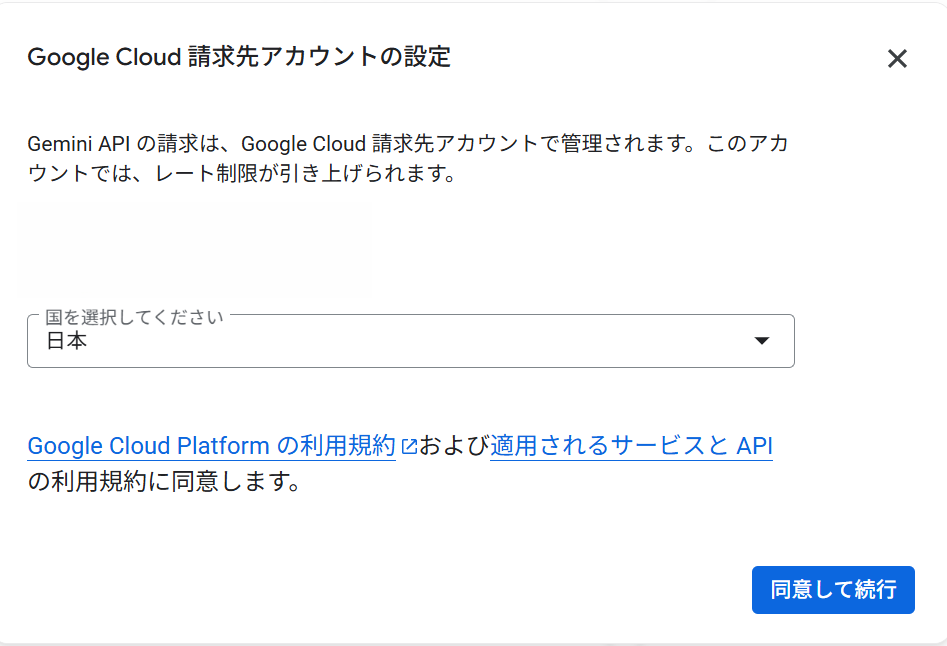
 - Select your country, agree, and click continue.
 Click to enlarge
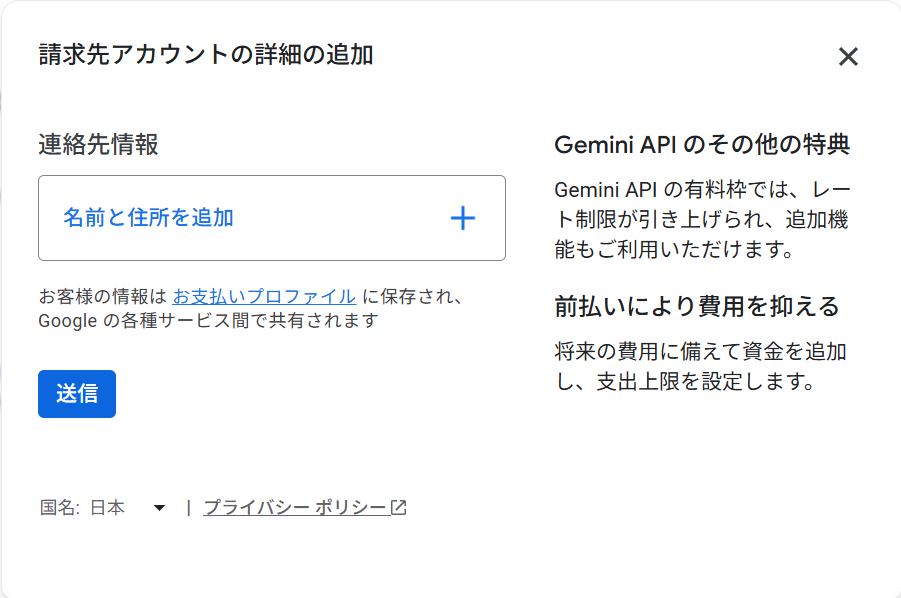
 - Enter contact information (name, address, etc.) and submit.
 Click to enlarge
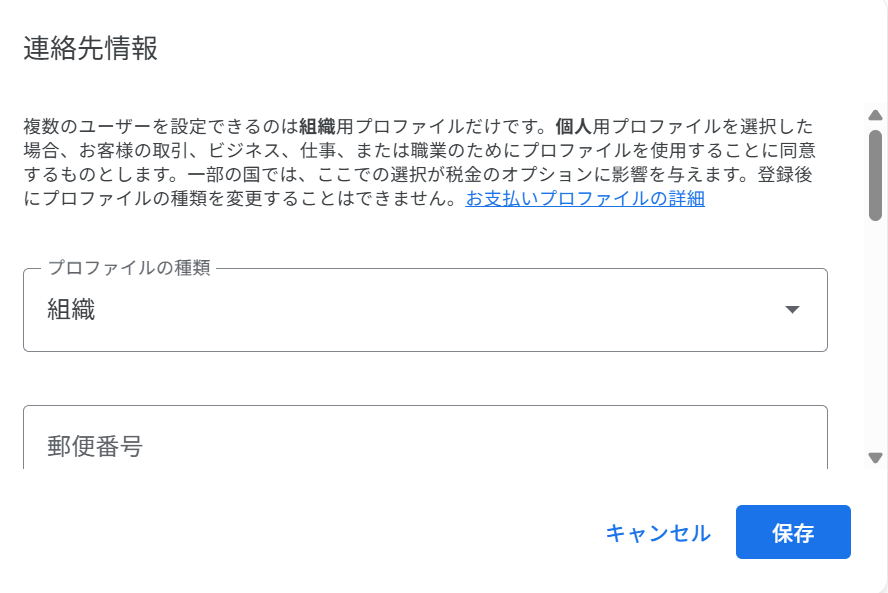 Click to enlarge
 - Add a payment method (card) and save.
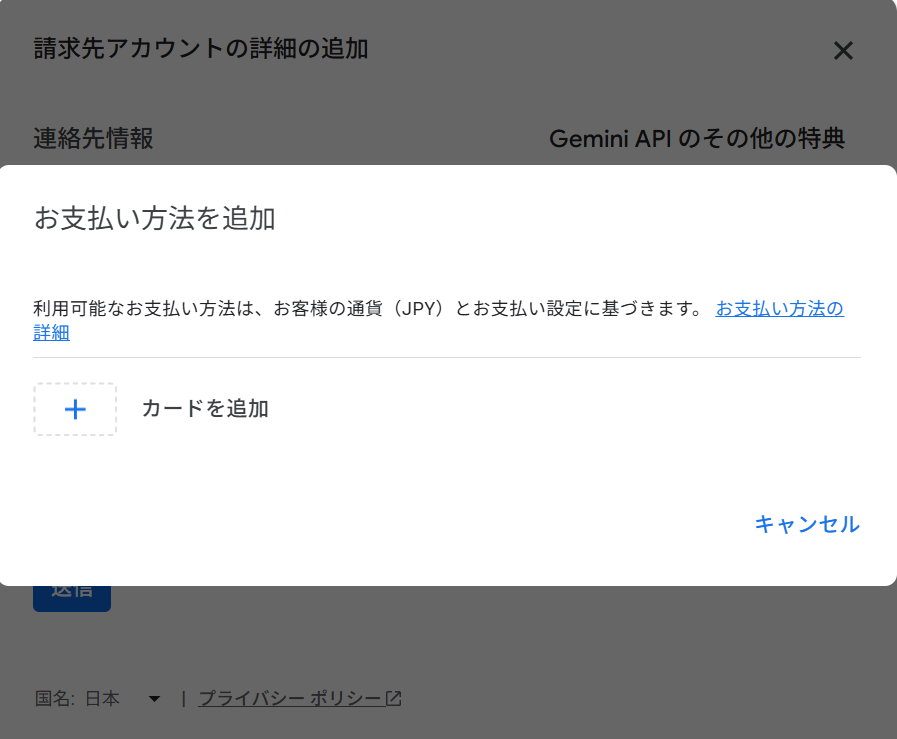 Click to enlargeKey PointWhen billing setup is complete, "$300 worth of credits" valid for 90 days may be granted (conditions vary by period). Furthermore, credits are used preferentially, so basically no payment occurs until they are used up (conditions vary by period).
 - Rarely, the setting process may not finish. In that case, close it once and press "Billing information" again to proceed.
- Finally, confirm that "Paid Tier 1" etc. status and credit balance are reflected at the top of the AI Studio screen.
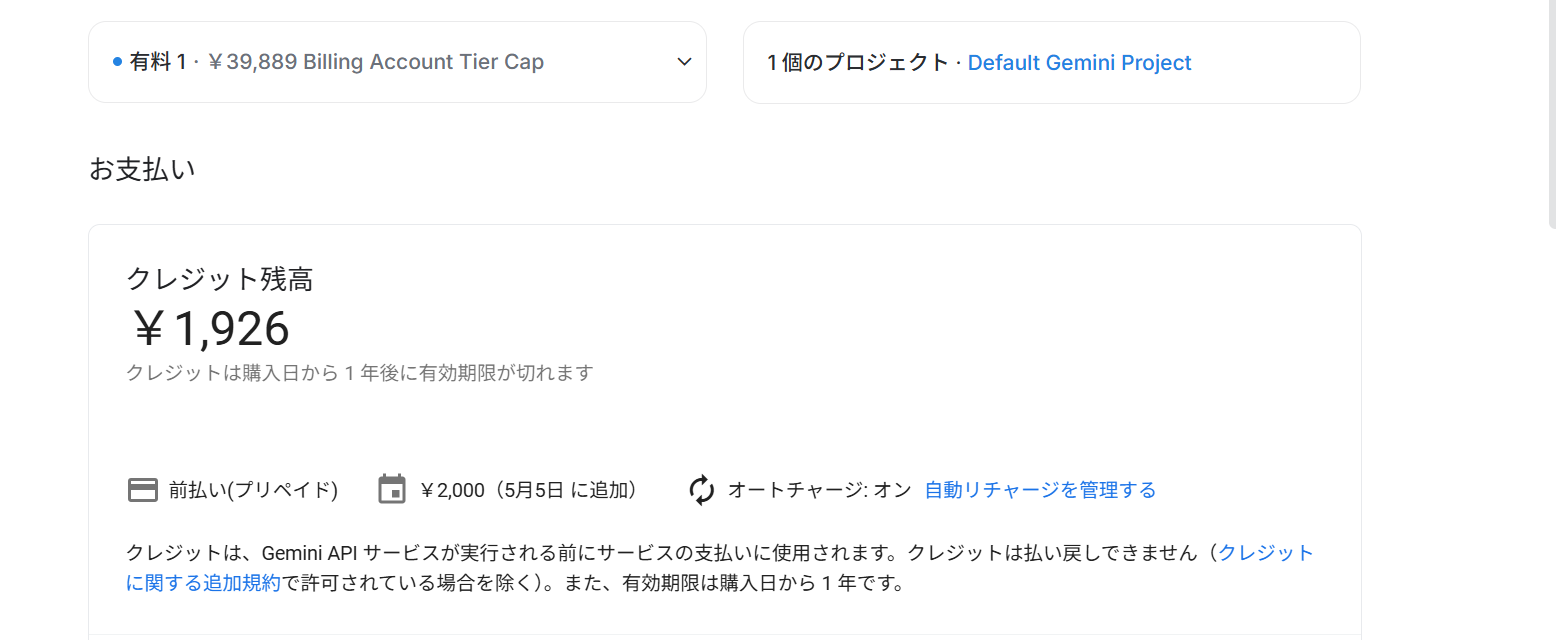 Click to enlarge
 - Return to Kizuna Desktop, paste the API key in Gemini settings, and press "Confirm settings and enable".
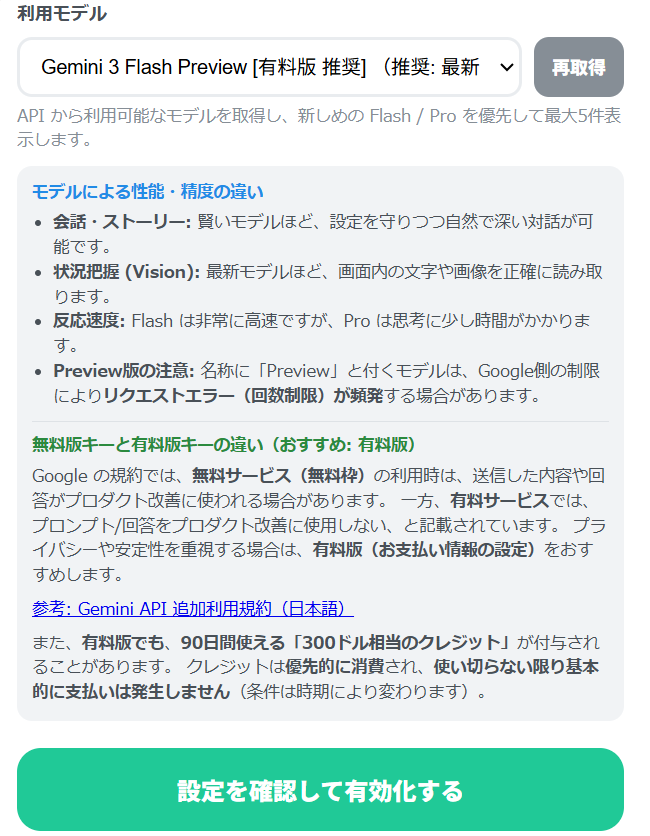 Click to enlarge
※ Screens and wording may change with updates. If the display is different, you can proceed from near "Billing" or "Billing information".
Supplement (FAQ)
What is the prepaid method?
It is a method where you purchase credits (balance) in advance, and usage is consumed from there. If you enable auto-recharge, you can practically "continue using without stopping".
Why doesn't the "Free/Paid" status appear in the app?
Because Google does not provide a mechanism for app APIs to explicitly return billing status (Tier/balance). Please check on the AI Studio billing screen.
Is an API key required?
Yes. An API key issued in Google AI Studio is required to connect to Gemini. Connection Guide